How to Add ALT Attributes to Images Automatically in WordPress: A Comprehensive Guide

Zarnish Khan
Feb 7, 2023 · 15 min read
Images are a fundamental component of any engaging website. They enhance the visual appeal of your content and provide context to visitors. However, there's more to images than meets the eye. They also play a crucial role in search engine optimization (SEO) and web accessibility.
One often-overlooked aspect of image optimization is the ALT attribute, which provides a text description of the image. In this comprehensive guide, we'll explore how to add ALT attributes to images automatically in WordPress, ensuring your website is both SEO-friendly and accessible to all users.
What Are ALT Attributes, and Why Are They Important?
ALT attributes, or "alt tags," are short text descriptions that provide information about an image's content. They serve several vital purposes:
- Accessibility: ALT attributes are essential for users with visual impairments who rely on screen readers to navigate the web. When an image is described in the ALT attribute, it can be read aloud to the user, providing context and understanding.
- SEO: Search engines use ALT attributes to understand the content of images. This information can influence search engine rankings and help drive organic traffic to your site.
- User Experience: When an image fails to load, the ALT attribute is displayed in its place, ensuring visitors still receive meaningful content and context.
Now that we understand the importance of ALT attributes let's explore how to add them automatically in WordPress.
Adding ALT Attributes Automatically in WordPress
WordPress offers several methods to automatically add ALT attributes to your images:
Use a Plugin
Install and activate an SEO plugin like Yoast SEO or Rank Math. These plugins provide an option to generate ALT attributes based on your image file names or existing image titles.
Update Media Settings
In your WordPress dashboard, navigate to "Settings" > "Media."
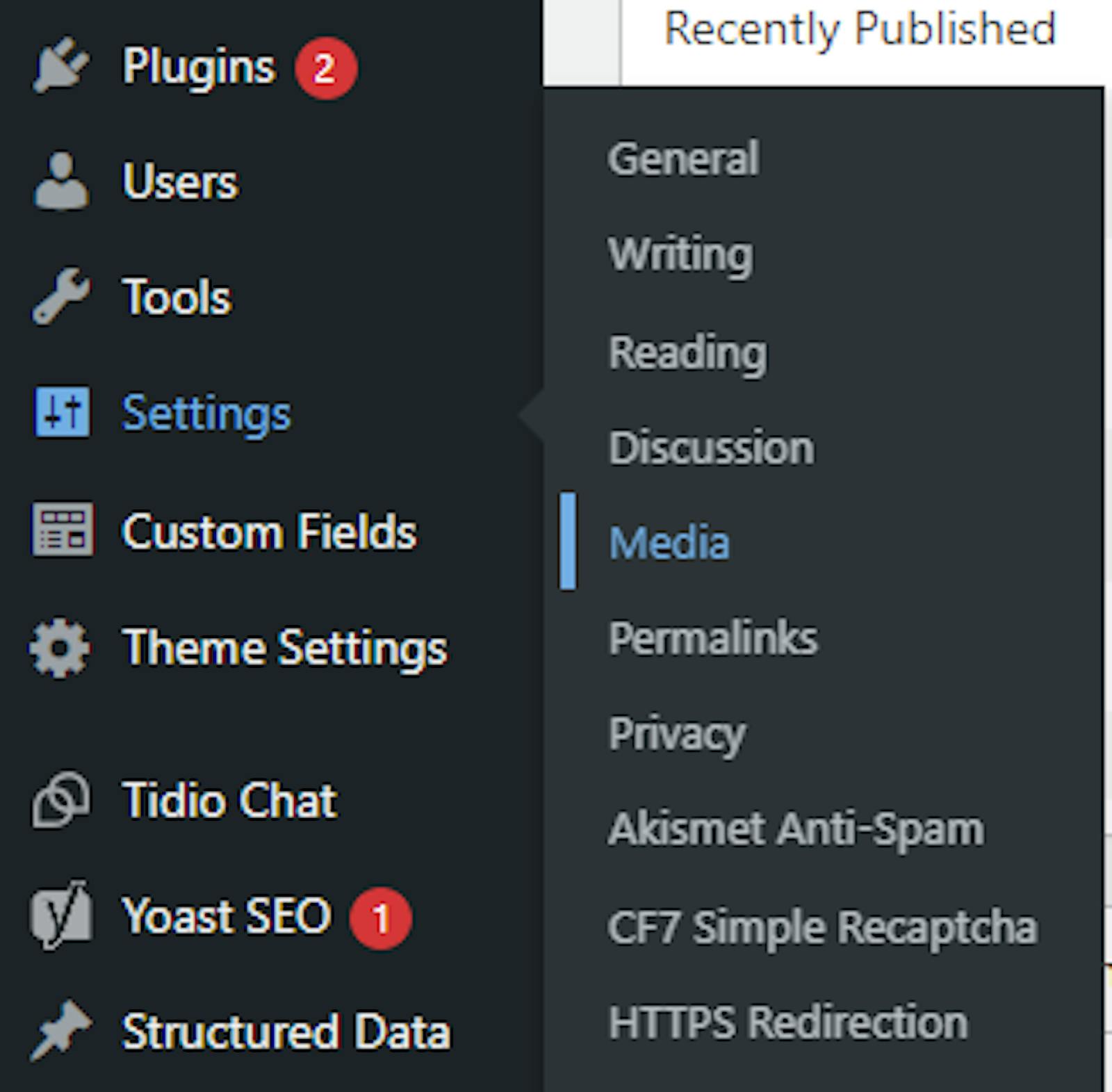
Ensure that the "Image" field is set to "File name" or "Image Title" to automatically generate ALT attributes based on your filenames or image titles.
Custom Functions
For more advanced users, you can implement custom functions in your theme's functions.php file. These functions can generate ALT attributes based on your specific requirements.
Image Editing Tools
Before uploading images to your WordPress site, consider using image editing software to rename files with descriptive names. WordPress often uses these names as ALT attributes by default.
Best Practices for ALT Attributes:
- Keep ALT attributes concise and descriptive, conveying the image's content.
- Avoid keyword stuffing; instead, focus on accuracy and relevance.
- Use hyphens or underscores to separate words in file names for better readability.
- Ensure that ALT attributes are unique for each image to provide accurate context.
Writing Effective Image Alt Tags
A great picture alt tag won't explain an image too much or too little. Follow these guidelines for picture alt text to achieve this:
- Only use alt text when it's required. Some featured photographs do not require alt text. For instance, photographs that are decorative or those that have previously been explained in a paragraph nearby don't require alternate text. Normally, background images don't require alt text either.
- Be clear, succinct, and specific. Give a brief, accurate description of the visual without going into great detail. Get to the point quickly.
- Consider content context. This is particularly helpful when defining stock photos that lack distinctive picture elements, such as well-known locations or topics.
- Limit the alt text to 125 characters or less. Many screen readers will only scan alt text that is up to 125 characters long before stopping abruptly. People who are blind may find it challenging to grasp the image as a result.
- Steer clear of expressions like "an image of" or "a screenshot of." This procedure is unnecessary because search engine bots and browsers can already tell that it is an image file by looking at the code.
- Use keywords carefully. To avoid keyword stuffing, use the content's goal keywords as naturally as you can in the alt text. Use semantic keywords as one of the greatest methods for slipping keywords into your alt text.
Other image SEO strategies for your WordPress site's photos include employing pertinent images and optimizing images in addition to these alt text tactics. Selecting the appropriate format and compression are two methods for optimizing photos. The latter is particularly crucial because it takes longer to load larger photos.
How Our Images Alt Attributes Services Can Help
Our ALT images optimization services are a vital component of enhancing your online presence. By optimizing ALT attributes, we improve your website's accessibility for visually impaired users, fostering inclusivity.
Additionally, these attributes enhance your site's SEO, elevating its search engine rankings and visibility. Through our services, we ensure each image is accurately described, creating a richer user experience and boosting organic traffic.
Trust us to automate this essential task, saving you time and ensuring your images convey their intended messages effectively, whether it's in product descriptions, blog posts, or any other web content. Elevate your website's accessibility and SEO with our custom WordPress development company.
Wrap Up
Henceforth, adding ALT attributes to images automatically in WordPress is a crucial step for improving web accessibility, enhancing SEO, and providing a better user experience. By following the methods mentioned above and best practices, you can optimize your images and make your website more inclusive and search engine-friendly.